Text to Handwriting Converter
Turn typed or pasted text into handwriting-style notebook pages. Choose a font, paper style, margins, colors, and text boxes, then export as PDF, PNG, or JPG. No sign-up required.
Open Editor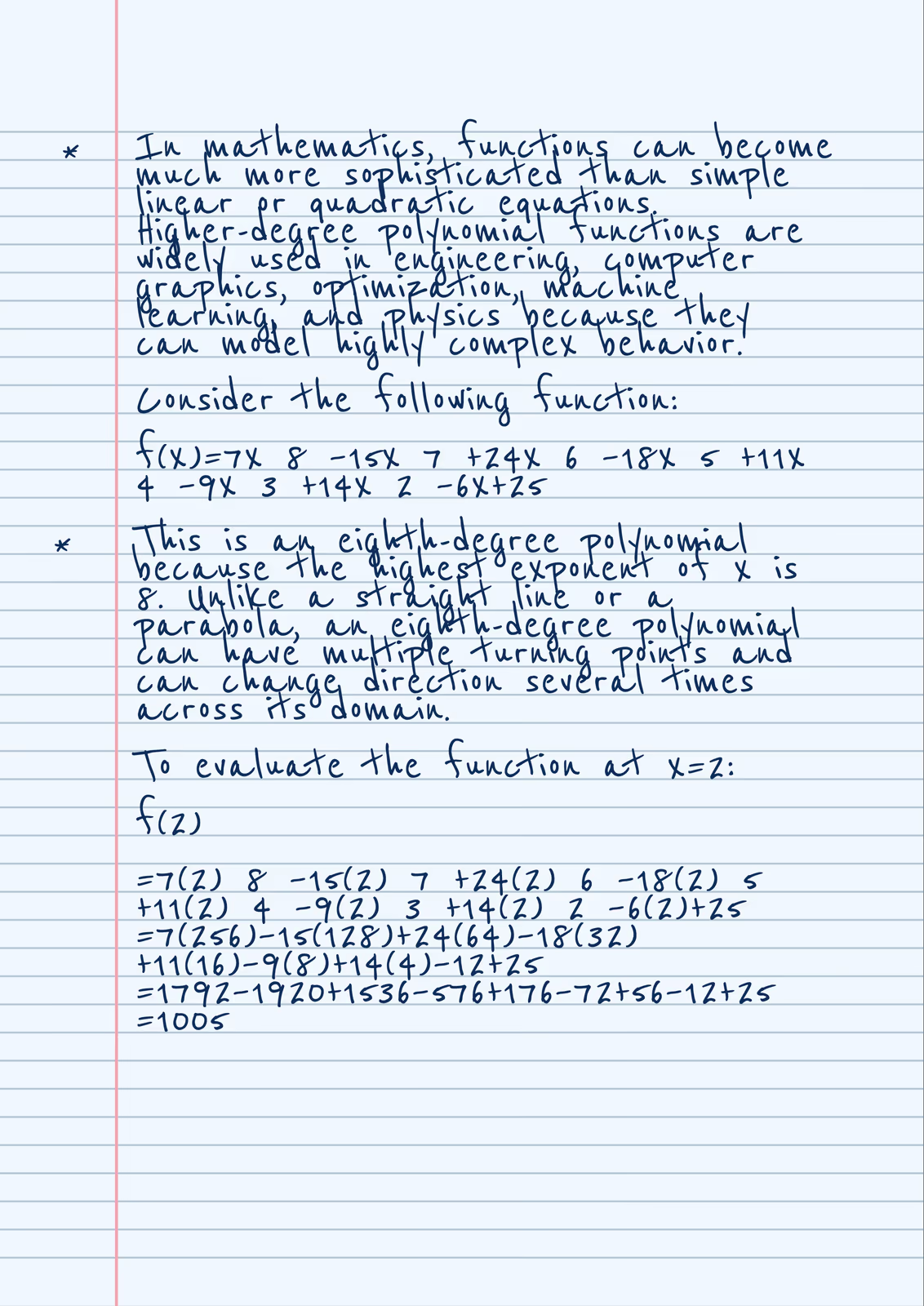
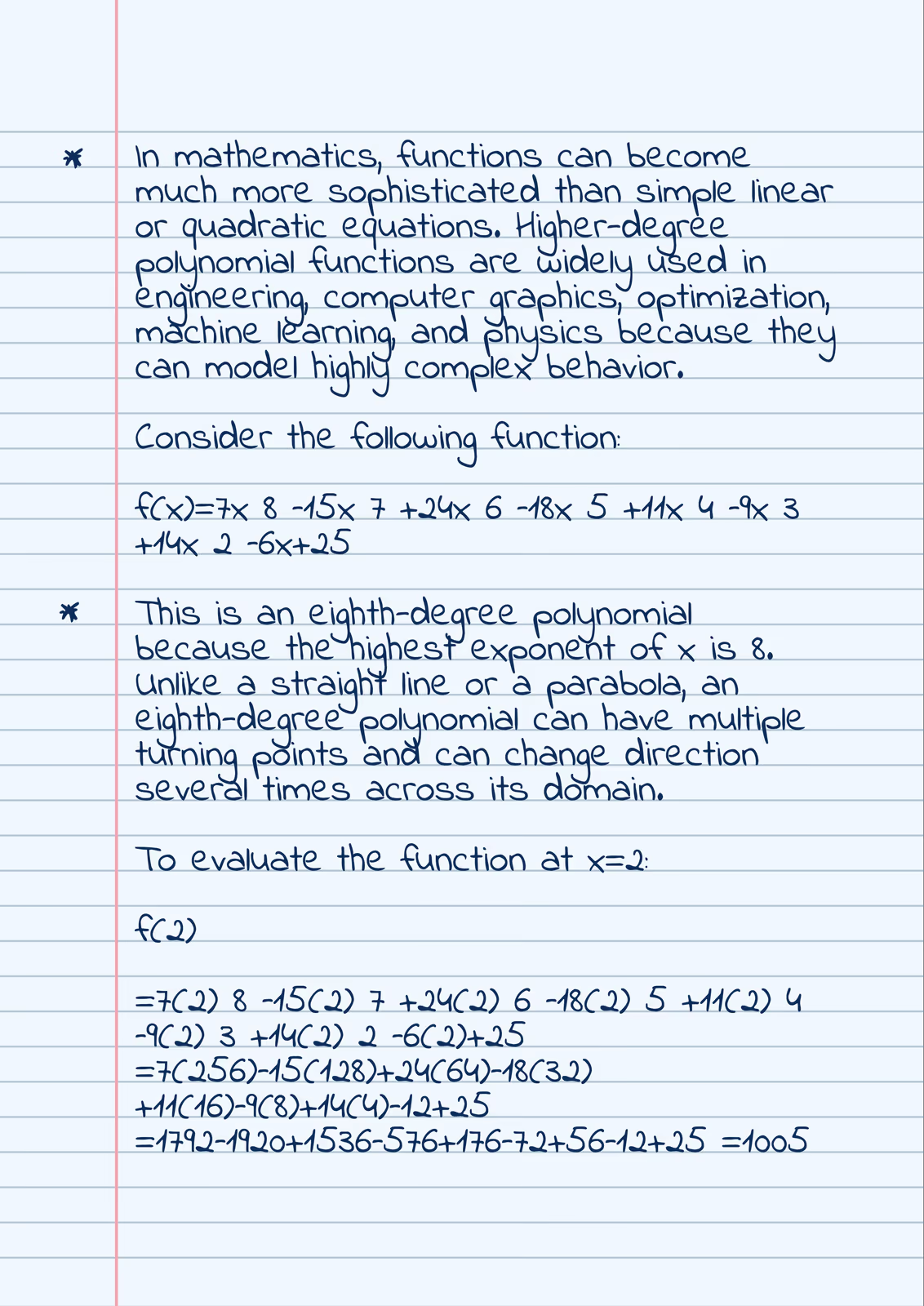
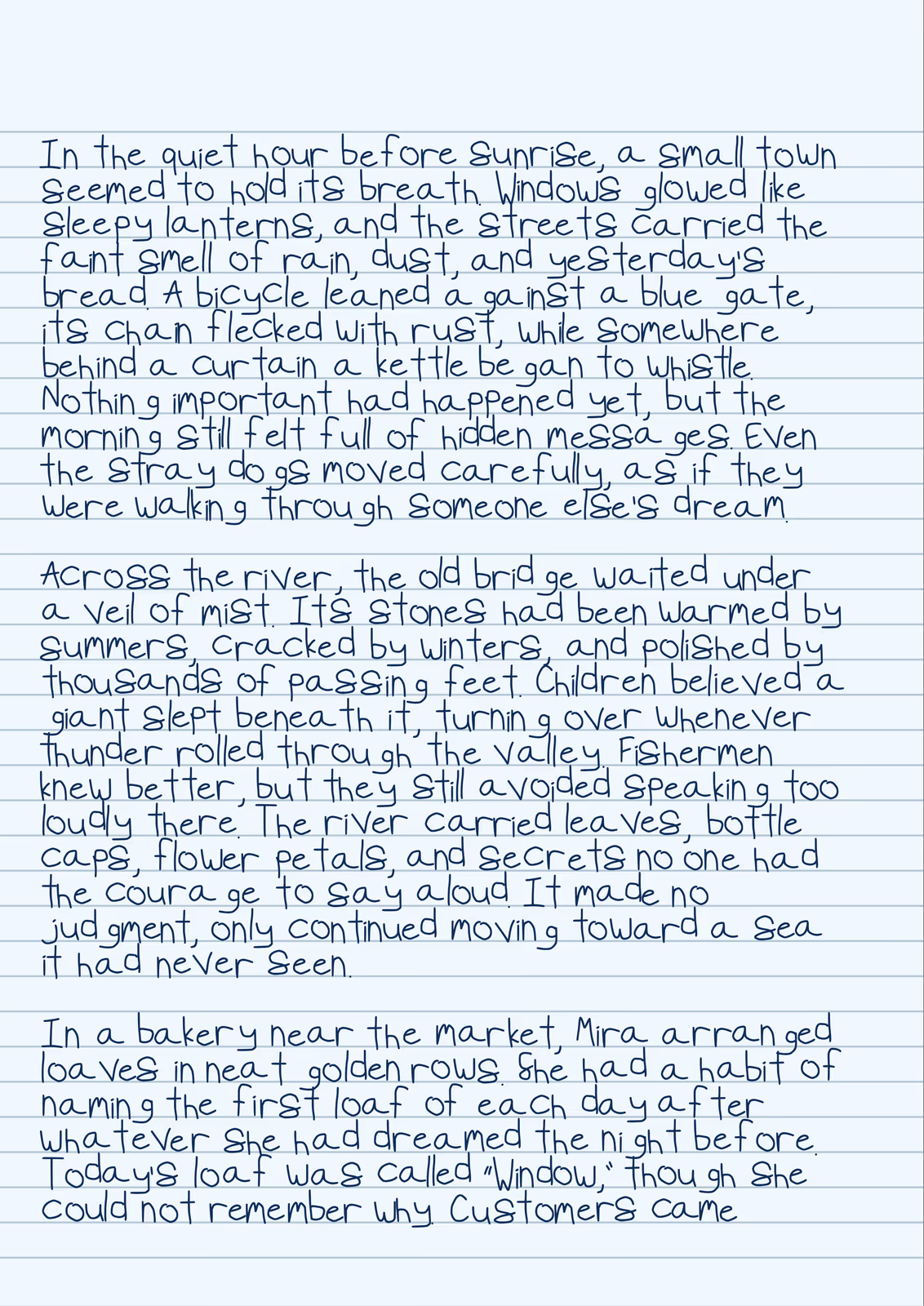
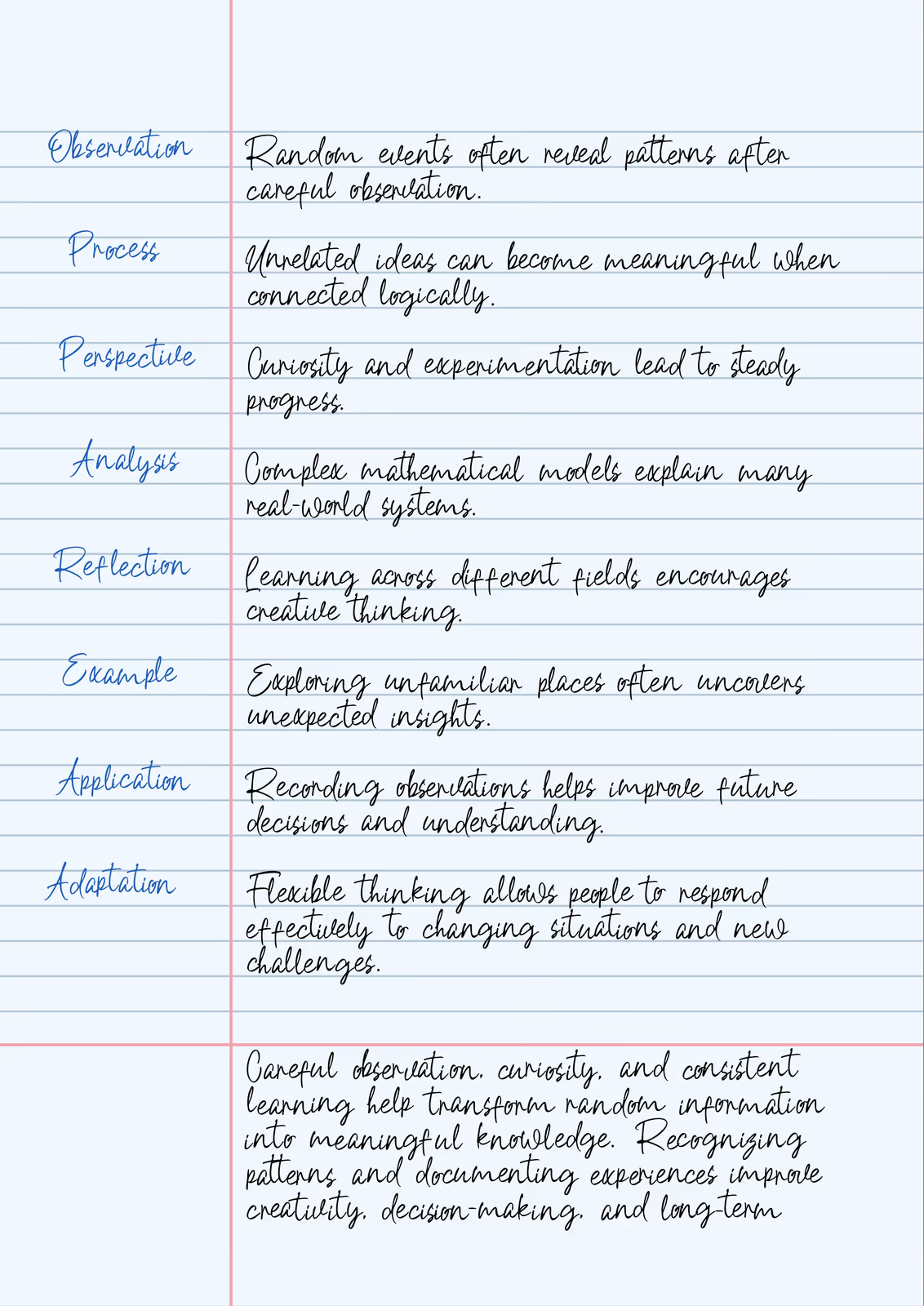
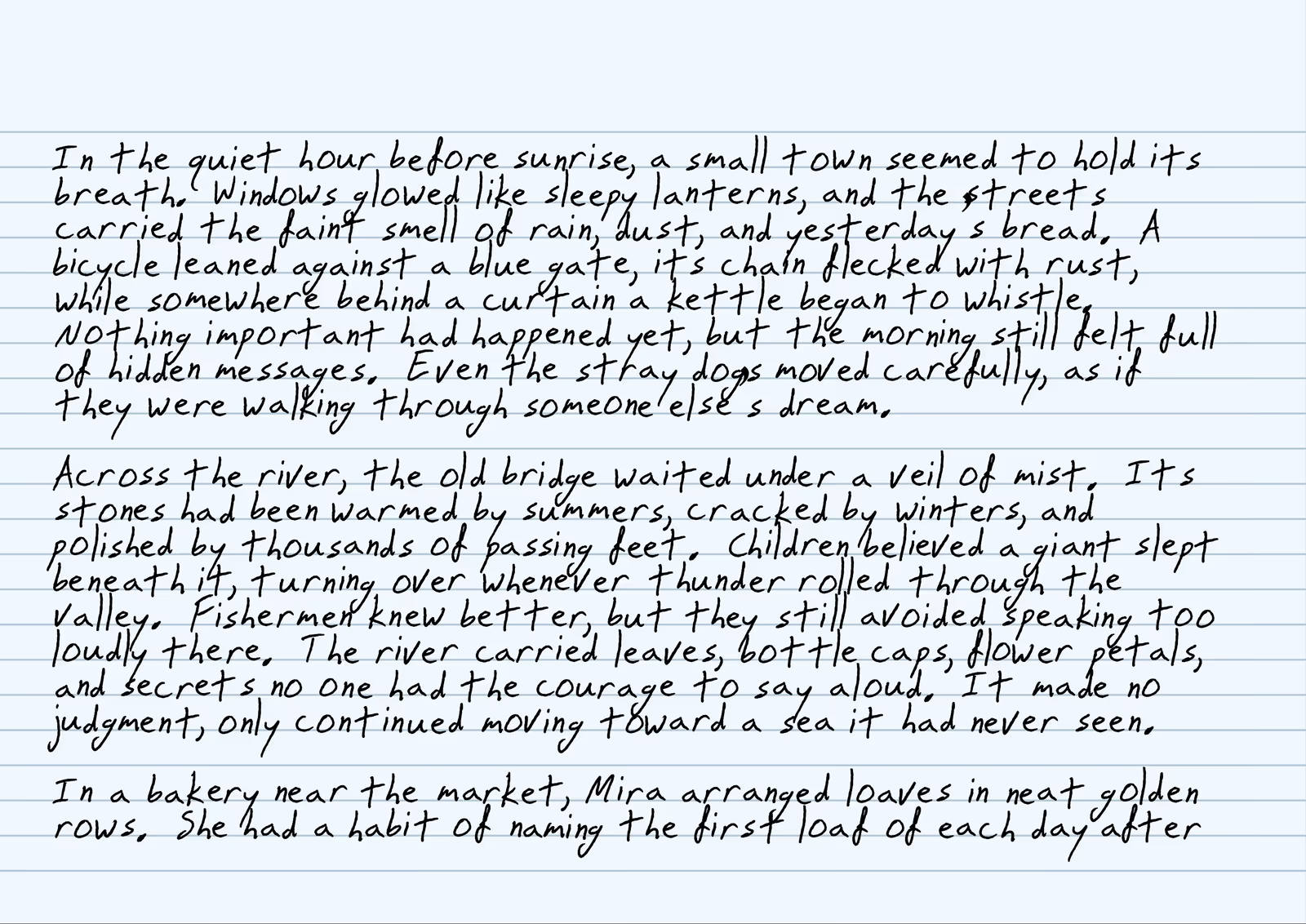
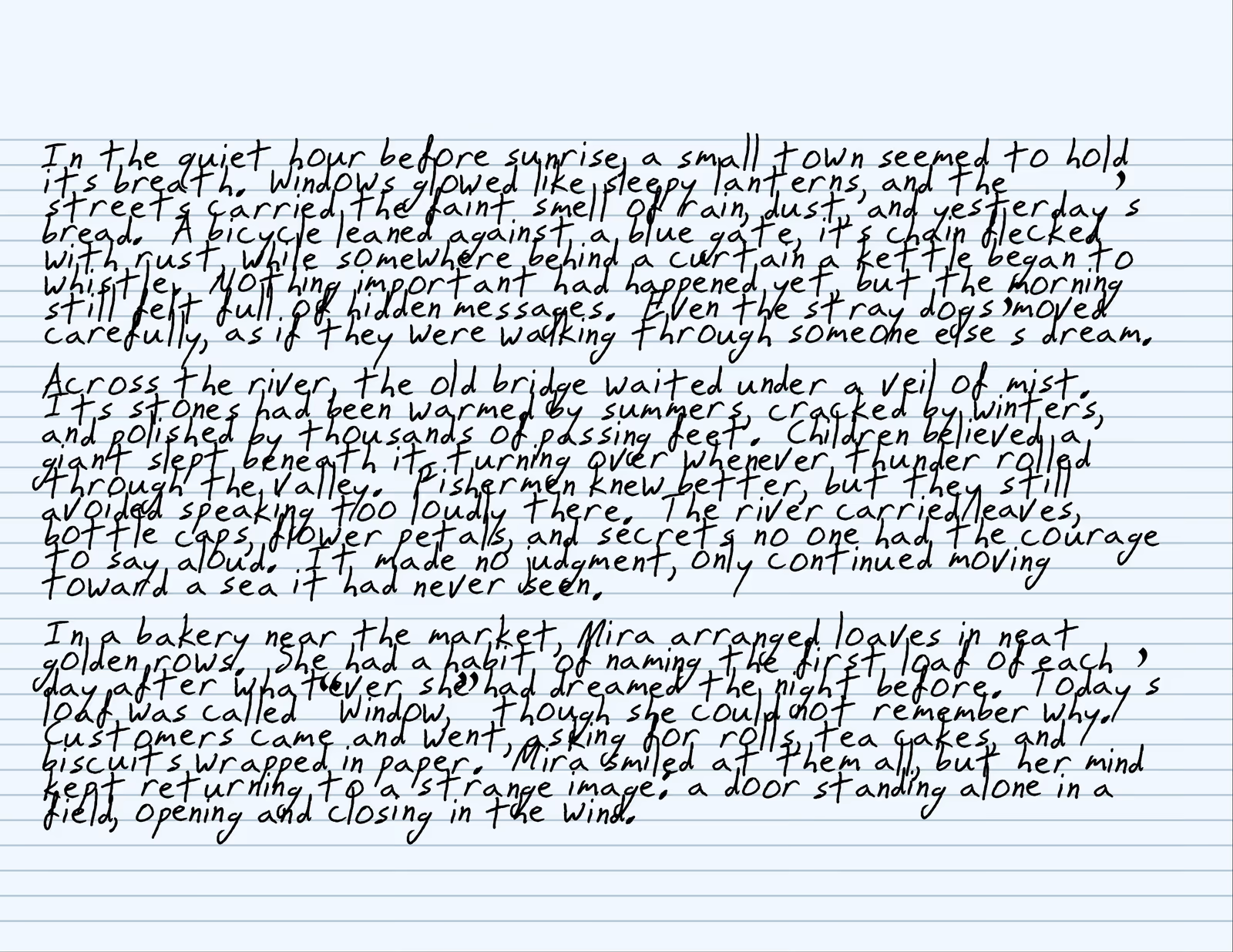
What Text2Ink does
Text2Ink turns typed or pasted text into rendered notebook pages. The output is a visual handwriting-style page preview, not an editable word-processing file. You write the text, choose handwriting and paper settings, check the rendered pages, then download the result as a PDF, PNG, or JPG.
The editor opens without an account or payment step. Its controls cover handwriting font, font size, ink color, line height, paper style, page size, orientation, margins, page colors, text boxes, page navigation, randomness, and export. Those controls stay on the page because the main job is judging the rendered page before downloading it.
Best results come from matching the settings to the job. A short note can use a larger expressive font. A dense response may need narrower handwriting, A4 or A3 paper, and calmer randomness. A worksheet or form usually needs a custom background plus text boxes instead of one continuous block of text.
How to convert text to handwriting online
Open the editor, type or paste your text, then choose a handwriting font, ink color, font size, and paper preset. The preview updates from the same editor state used for export, so the page you inspect is the page the downloader will render.
Set the layout before fine-tuning style. Pick Letter, A4, or A3, choose portrait or landscape, then adjust margins, line height, text position, line offset, and custom line spacing where those controls apply. For a worksheet, certificate, planner, or scanned sheet, upload a PNG or JPG background and place handwriting over it.
When the text is ready, open export and choose the file type. Export stays disabled while the editor is empty, which prevents blank downloads. For long content, use page navigation before downloading; check the last page before exporting because a small font, spacing, margin, or paper change can move lines across page breaks.
Use the preview at the size closest to the final use. A printed page needs room at the margins and enough line spacing for paper handling. A screenshot or image upload needs larger handwriting, stronger contrast, and less fine variation because the page may be resized after download.
If the preview looks wrong, fix the layout before changing the export format. Cropped handwriting usually points to margins or page size. Crowded lines usually need font size or line height changes. Low contrast usually means the ink color and paper color are too close.
Handwriting font options
Text2Ink includes 30 built-in handwriting fonts. Use Singlong for an informal note-style page, Snake when the heading needs a heavier handwritten look, Kalam Light for readable classroom-style notes, and Reenie Beanie for compact casual writing. These are practical starting points; the preview is the final judge.
If the built-in set is not right for the document, upload a custom .ttf or .otf font file. The browser reads the selected file so the editor can render it, and the font can be included in saved draft state. Font size, ink color, and line height remain separate controls, so one font can still produce different density and readability.
Font choice affects pagination as much as personality. Wide letterforms fill a line quickly, script fonts can need more vertical space, and small narrow fonts can make a page harder to read after export. If a page feels crowded, try a more compact paper size only after testing font size, line height, and margins.
For custom fonts, use files you have permission to use and check the preview after upload. Some decorative fonts have unusual spacing or missing characters, so a short sample can look fine while a full paragraph exposes gaps, clipped accents, or inconsistent line height.
Notebook paper and page setup
The editor includes 10 paper styles: Blank, Lined (Medium), Wide Lined, Narrow Lined, Ruled (Medium), Wide Ruled, Narrow Ruled, Grid, Dot Grid, Cornell. Combine them with Letter, A4, A3 page sizes and Portrait and Landscape orientation. Paper setup also includes paper color, text position, margins, upload-backed line tilt, line offset, and custom line spacing.
Paper color and ink color are separate decisions. The catalog includes Cream, White, Aged, Light Blue, Light Yellow, Light Green, so blue or dark ink can stay consistent while the page changes from white to cream, aged, or colored paper. For custom sheets, upload PNG or JPG background images and align handwriting on top of the image.
Pick paper by the task. Lined and ruled paper help ordinary notes follow rows. Grid and dot grid suit math, planning, or structured notes. Cornell paper gives a cue column and note area. Letter, A4, and A3 hold different amounts of handwriting, and landscape orientation changes line length more than most font adjustments.
Realism controls
The Enable Randomness setting controls handwriting variation while rendering text. When it is on, Text2Ink can vary letter spacing variation, baseline variation, rotation variation. That helps repeated letters and long lines avoid a perfectly mechanical rhythm while keeping the typed content readable.
Use realism controls after the page already fits. First choose the font, paper, margins, and line height. Then add small spacing, baseline, and rotation changes if the preview looks too uniform. Heavy variation can make dense writing harder to read, especially after a mobile screenshot or JPG export.
Randomness also applies to movable text boxes, so labels, side notes, and form answers can match the main handwriting. For a clean worksheet answer or technical note, reduce randomness or turn it off. For a casual note, keep variation modest and inspect the page at the export size you plan to use.
Text boxes and page control
Text boxes add handwriting outside the main text flow. Use them for form fields, annotations, side notes, headings, labels, corrections, or a short answer that needs to sit in a specific area of an uploaded background. Each box can be moved, edited, resized, and removed from the active page.
Per-page settings help when one document is not visually uniform. The first page might need a title box, the second page might need tighter margins, and a custom background may belong on only one page. Saved draft data uses browser local storage under text2ink.editor.state, including typed text, settings, text boxes, uploaded font data, uploaded background images, preview scale, and current page position.
Use Apply to all pages only after one page setup is correct for the whole document. It saves repetitive work when every page should share the same paper, margins, line spacing, color, and background. If only one page needs a change, keep that change local and use page navigation to confirm the other pages stayed as intended.
After moving text boxes, inspect the page with the main handwriting visible. A box can look aligned by itself but collide with the next line, a margin, or a background label. Check both the page you edited and any page that reuses the same settings.
Export options
Text2Ink exports PDF Document, PNG Image, JPG Image. Use PDF when a teacher, client, or archive needs one file with every page. Use PNG when crisp page images matter more than file size. Use JPG when a smaller photo-style image is acceptable for a message, upload, or quick preview.
Exports are generated from the current editor state: text, selected font, custom font if present, paper setup, colors, margins, line settings, text boxes, page-specific settings, and uploaded backgrounds. The export button stays disabled until there is text because a blank handwriting page is not useful output.
For multi-page writing, PDF is usually easiest because pages stay together. PNG and JPG are better when another app expects image files or when you only need a page preview. Whatever format you choose, inspect the preview first; export does not reinterpret the text as a document, it renders the page state you already built.
After downloading, open the exported file once before sending it anywhere. Confirm the first page, last page, background images, text boxes, and page order survived the download. This matters most when the output will be printed, submitted through a form, or attached in another app.
Responsible use and privacy
Text2Ink gives you control over the text and files you use, but it does not decide whether handwriting-style output is allowed by a school, workplace, platform, client, or form owner. Before submitting or sharing an export, check the rules that apply to that use.
Custom fonts and background images are read through browser file APIs. Saved drafts can stay in browser storage under text2ink.editor.state. Clearing Text2Ink site data removes that saved draft from the browser profile, including private text, uploaded font data, uploaded background images, text boxes, and page settings.
Shared computers and managed browser profiles need extra care. Anyone with access to the same profile may be able to see restored draft state. Remove saved data you do not want kept there, and inspect each export before sharing because downloaded files can include every visible page element from the preview.
Text2Ink FAQ
Can I use Text2Ink without signing in?
Yes. The editor opens from the homepage without an account or payment step.
Where is my draft saved?
Saved editor drafts use browser local storage under text2ink.editor.state. That draft can include text, handwriting settings, page settings, text boxes, uploaded font data, uploaded background images, preview scale, and page position.
How do I remove saved Text2Ink data from my browser?
Clear the site data for text2ink.com in your browser settings, or clear the saved editor state from the editor controls when that option is available.
What happens when I upload a custom font or background image?
The browser reads the selected file and stores it in the editor state for rendering. Custom font uploads accept .ttf and .otf files, and custom background uploads accept PNG or JPG images.
Should I export as PDF, PNG, or JPG?
Use PDF for a document with one or more pages, PNG for crisp page images, and JPG when a smaller image file is acceptable. The export reflects the current preview state.
Can a long document export across multiple pages?
Yes. Longer text paginates into multiple rendered pages, and the export flow uses the pages from the current editor state.
Can I change one page without changing every page?
Yes. The editor supports per-page settings, and the Apply to all pages action is available when the current page setup should be reused across the document.
What should I check before submitting or sharing an export?
Check the rendered text, page count, paper setup, margins, text boxes, visible uploads, and export format. Also confirm that your use follows the relevant school, workplace, client, or platform rules.